No single cloud service can do everything. Some shine when it comes to streaming a cloud music collection from the Web, but stink at syncing desktop folders. Other cloud services are great for sharing photos, but useless for reviewing a document's revision history.
Because not all cloud storage providers are created equal, we looked at current offerings from Amazon Cloud Drive, Dropbox, Google Drive, Microsoft SkyDrive, and SugarSync, pinpointing the services with the best attributes for accomplishing specific tasks. Along the way we assembled tips and hints for performing advanced cloud storage tasks such as merging multiple free cloud services into one massive free megacloud.
With so many
new and improved online services vying to become your preferred online repository for documents, photos, music, and video files, why settle for just one? Use them all. Here are 15 awesome ways to get the most out of the free cloud storage craze.
The Best Ways to Sync Your Music Across Multiple PCs


You have many options for sharing a single music collection among several different PCs, such as using the
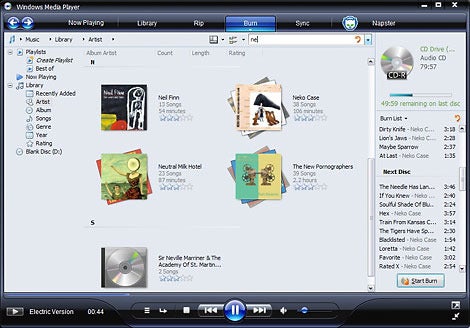
Home Sharing feature in iTunes or online services like iCloud or Google Music. Another alternative is to drop your music collection into your cloud storage folder and have your desktop jukebox program (such as Windows Media Player) point to that folder as the default music location. Then, once you install your preferred cloud's desktop client on all your PCs, you'll instantly download your music to multiple computers. Depending on the size of your song collection, you may have to pay for extra storage to fit all of it in the cloud.
Of course, you can also follow this tip to sync any kind of media collection, such as photos, videos, or DRM-free ebooks.
The Best Ways to Sync Local Folders to the Cloud

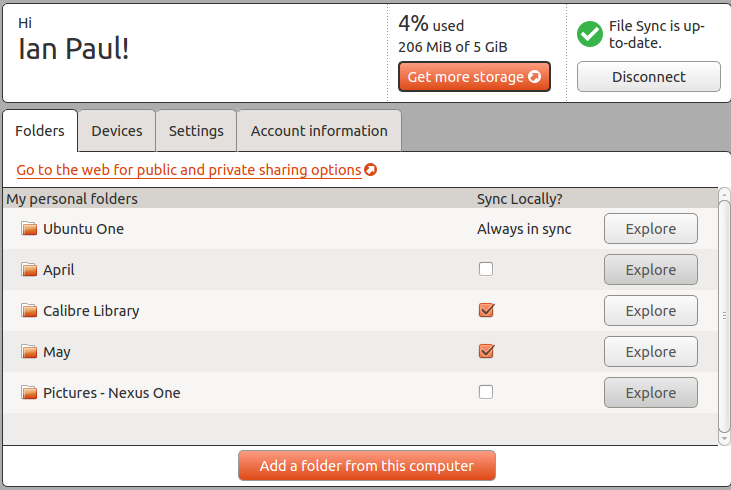
If you want to sync folders to the cloud without placing them inside your cloud folder, you can find several services ready to help. Ubuntu One from Canonical, available for Windows and Ubuntu Linux desktops, includes the ability to add any folder to your cloud storage without moving it.

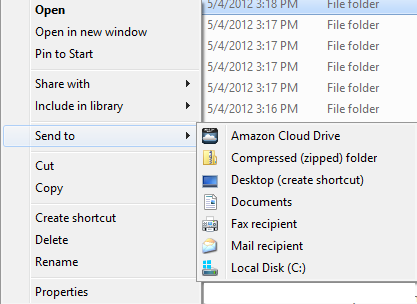
Another option is to use the recently released
desktop client for Amazon Cloud Drive. Cloud Drive does not place a new folder on your desktop as Google Drive, Dropbox, SkyDrive, and Ubuntu One do. Instead, Windows users can right-click any folder and select Amazon Cloud Drive from the 'Send to' menu option to sync to Amazon. The downside with Cloud Drive is that you can access your files only via a Web browser.
The Best Ways to Stream Your Cloud Music Library

Streaming your music from the cloud is a very different proposition than syncing it across multiple PCs, since some cloud services (such as Dropbox) don't offer comprehensive music streaming features. Your best bet is to use a dedicated online music service. Amazon, for example, offers
Cloud Drive and Cloud Player, which let Android and iOS users stream stored music files. You get 5GB of free online storage from Amazon Cloud Drive, and any music purchases you make through the online retailer's MP3 store and save to Cloud Drive do not count against your storage limit.

Music on Google Play, formerly known as Google Music, offers free storage for 20,000 songs, and any tunes you purchase from the company's music store do not count against your limit. You can listen to songs via Google's Music app for Android 2.2 or later, or you can use the
Web interface.
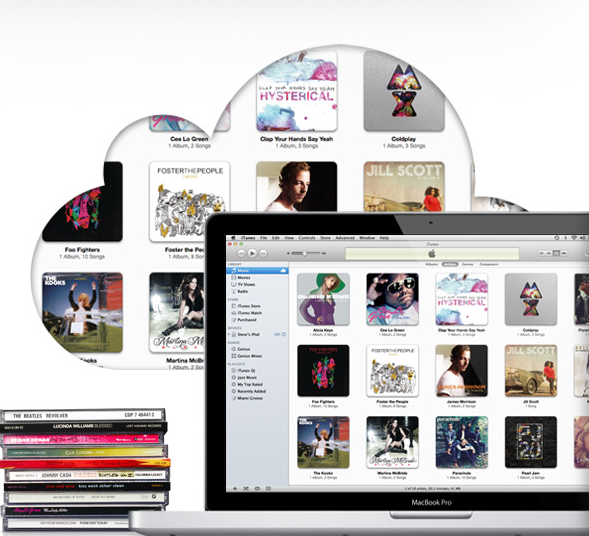
If you live in the iOS ecosystem, Apple offers a service called iTunes Match that lets you upload 25,000 songs to iCloud for $25 per year. Your tracks, including iTunes playlists, then sync across your PCs and iOS devices.

Ubuntu One users can pay $4 per month or $40 per year to stream music from Canonical's cloud service. With your yearly subscription, you also get an extra 20GB of online storage, which gives you room for another 5000 songs. In addition, Ubuntu One offers music-streaming mobile apps for Android and iOS that include caching, so you can listen to your music without an Internet connection.
TIP: Blast 'My Documents' to the Cloud

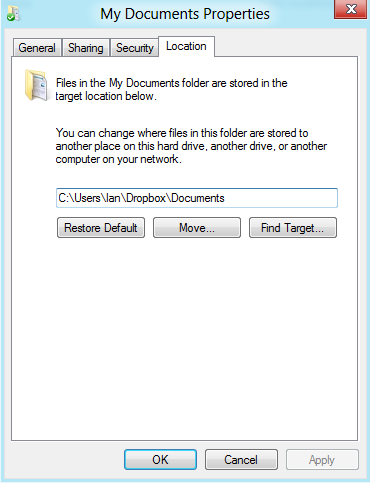
If you're a Windows user and you want all of your documents available in the cloud, you can turn a cloud storage folder into your Windows 'My Documents' folder. I did it using a subfolder inside Dropbox with the
Windows 8 Consumer Preview. To get started, open Windows Explorer, go to Dropbox, and create a new folder called
Documents. Next, go to My Documents, right-click the folder, and select
Properties.

In the My Documents Properties dialog box, select the
Location tab and click the
Move... button. Navigate to the Dropbox\Documents folder you just created, and click the
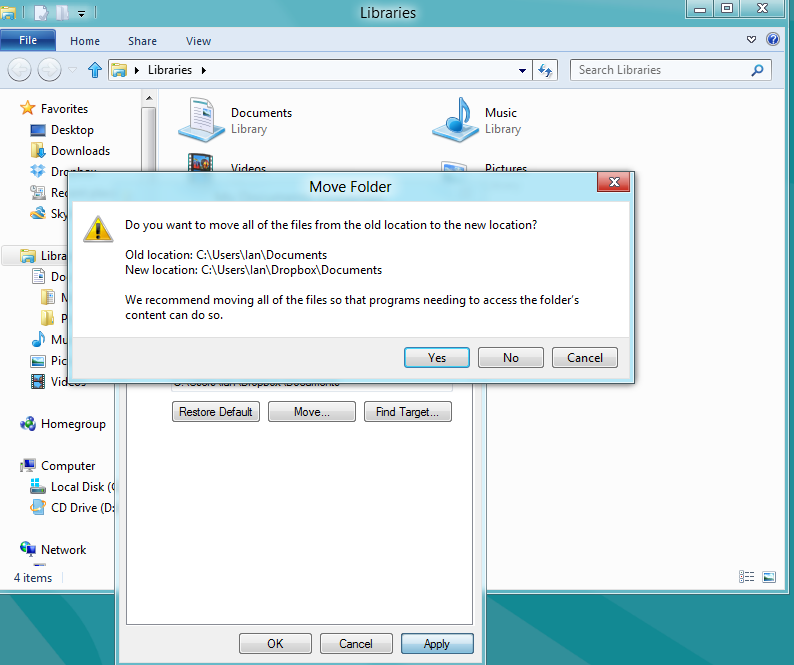
Select Folderbutton. This action will return you to the properties dialog box, where you need to click
Apply. A window will appear, asking whether to move all your old files to the new Documents folder (click
Yes). Now, every time you save a new file, it will go to Dropbox by default.
TIP: Sync Your To-Do List

If you save your to-do list as a plain-text file, you can then sync your list across all your devices--including your PCs, smartphones, and tablets--by using cloud storage. Just drop your Todo.txt file into your Dropbox, Google Drive, or SkyDrive storage, and you can then access it anywhere you have an Internet connection and a text editor.
You can also turn your plain-text list into an interactive smartphone app, with help from
Todo.txt Touch for Android and iOS.
The Best Ways to Automate Smartphone Photo Uploads

Since you carry your smartphone everywhere you go, you've probably filled it with snapshots you never want to lose. Many cloud storage providers can help you back them up. If you have an iPhone, you can use iCloud to back up your last 1000 photos and sync them across your devices. Windows Phone users can find a similar feature for SkyDrive. Google+ for Android has an Instant Upload feature that automatically sends your snaps to Google's social network; your photos will remain private until you choose to publish them in a post. Dropbox recently added an
automatic photo upload feature to its Android app, and Canonical's Ubuntu One offers automatic uploads for Android and iOS.
TIP: Send Mail Attachments to the Cloud
Why bother searching through many months' worth of email to find attachments when you can just save everything to the cloud? Many desktop mail programs will let you specify where attachments should be saved. Then, whenever you download an attachment, it will go to a single folder that you can access anywhere.
The Best Ways to Access a PC Remotely via Cloud Storage

Microsoft's SkyDrive offers remote access to all your Windows PCs, including attached external drives, that have the SkyDrive desktop client. During installation of the desktop client, you will be asked to authorize remote access. After the client is installed, log in to skydrive.com on a Web browser from another computer.
In the left column, you will see a 'Computers' section listing all the Windows PCs connected to your SkyDrive account. Select the computer you want, and then SkyDrive may ask you to enter a six-digit code sent via email to

authorize remote access. (The authorization code will not go to your Hotmail account, but to your alternate email address that Windows Live has on file.) After you enter the authorization code, you can access your PC's file system via the SkyDrive Web interface. To use this feature on a mobile device such as the iPad, you will have to enable the PC version of the site at the bottom of the Web page.
If SkyDrive doesn't interest you, SugarSync provides similar remote-sync capabilities for Windows and Mac.
TIP: Send Website Document Links to Dropbox

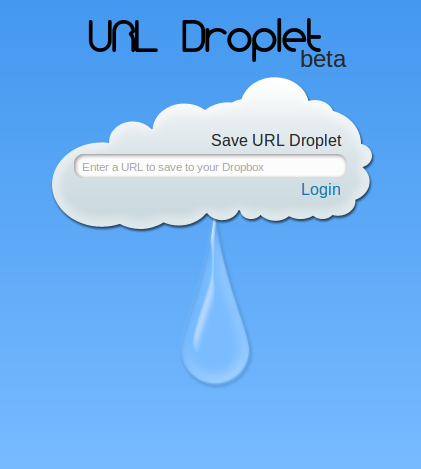
A beta service called URL Droplet lets you send documents (such as PDFs and spreadsheets) found on Web pages directly to your Dropbox, no manual download necessary. Simply
sign up for URL Droplet and authorize the service to access your Dropbox; URL Droplet uses the Dropbox API, which means the service never sees your account password. Next, paste a link to the online document, and click
Save. The file will appear in Dropbox and sync across all your devices.
TIP: Email Items Directly to Dropbox

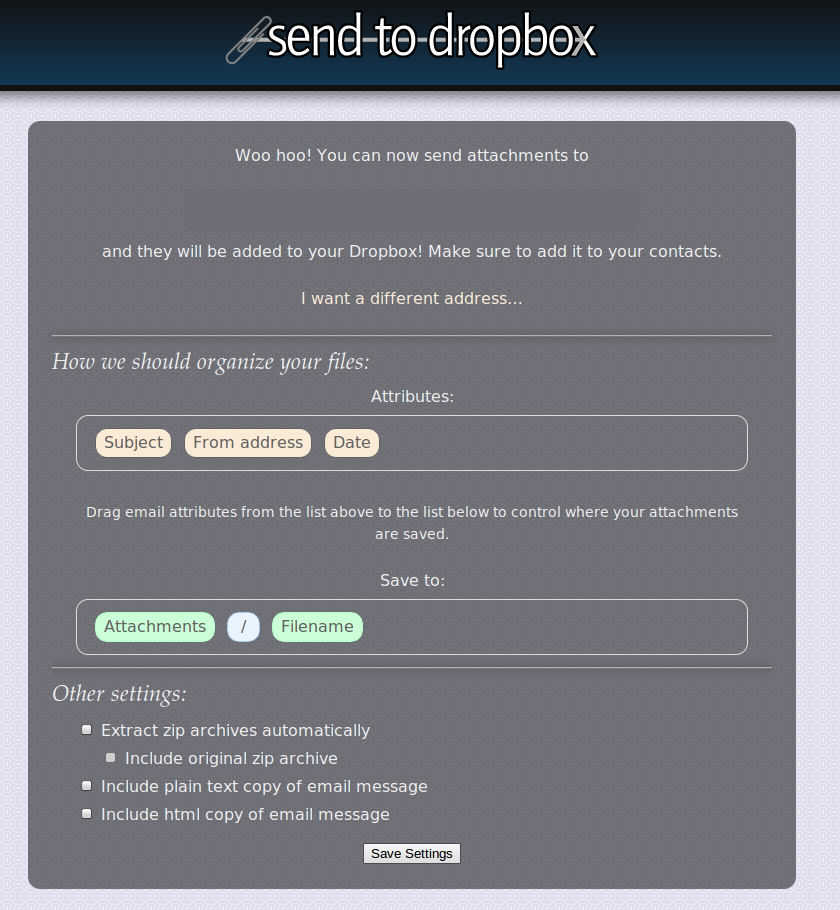
The free service
Send To Dropbox lets you hand out a public email address so that people can send things directly to your Dropbox. You can have the service automatically create folders and subfolders based on the email subject, the sender's email address, or the date the document was sent. You can also tell Send To Dropbox to unzip archived files automatically and include copies of the email messages sent.
The Best Ways to Manage Document Version Control

You've probably heard that Google Docs has a built-in version-control system so that you can go back and view past versions of a collaborative document, but did you know that Dropbox and SkyDrive offer similar services?
Dropbox keeps a snapshot of every saved file over the past 30 days; if you delete an all-important paragraph and want it back, you can recover it as long as you saved a version of that file to Dropbox in the past month. Go to your Dropbox folder, select the file you want to see, and then right-click it and select View Previous Versions from the context menu. This action will take you to a Web page listing your latest file saves for that document, including the revision date and who changed the file. Dropbox typically shows only ten changes per page, so click the Older> link to see more changes from the past 30 days.

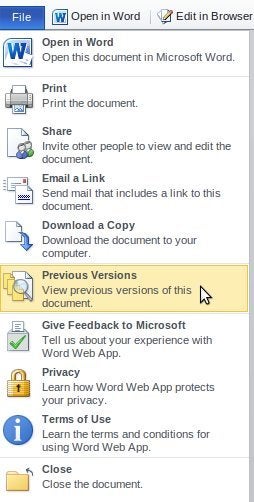
In SkyDrive, you can see version history by selecting a file from the Web interface and then going to
File, Previous Versions. This action will bring up a sidebar with all of your latest document changes.
SugarSync also offers a version-control feature, but it is less robust since it keeps only your last five file saves.
TIP: Don't Rely on the Cloud for Video Streaming

Cloud storage helps you access your files anywhere you can get an Internet connection--except when it comes to video. Since streaming video takes up more bandwidth than downloading a document or streaming music, how much you can stream depends on your cloud provider. During my testing with a 315MB, 77-minute M4V file, Dropbox streamed the entire content when I used the service's mobile apps. But I could not watch the video in a mobile browser, and on my PC I was able to stream only a 15-minute preview.
Google Drive let me view the entire video content on the Web, but streaming didn't work on any of the mobile devices I tried. In addition, Google Drive makes you wait while it processes the video file for streaming.
TIP: Encrypt Your Cloud
If security is a big concern for you, consider encrypting your data before sending it to the cloud. The easiest way to do this is to use
Spideroak, an encrypted cloud-backup service that lets you back up specific files to the cloud and then sync them across multiple devices.

Another option is to encrypt your data locally before storing it in Dropbox, SkyDrive, Google Drive, or any of the other cloud services. Mac users should read Macworld's tutorial on
how to create an encrypted sparse image using OS X's built-in Disk Utility. You can also try the open-source program TrueCrypt for Linux, OS X, or Windows to encrypt personal files you want to send to the cloud; check out
PCWorld's TrueCrypt tutorial to get started.
TIP: Merge Multiple Services Into a Monster Cloud
If you have files spread across a number of cloud storage accounts, such as at Amazon S3, Box, Dropbox, Picasa, SkyDrive, and SugarSync, look to
Otixo. Through this service, you can connect them all, and then drag and drop files between your various cloud providers, no file downloading necessary. It works on almost any browser, including on mobile devices. Otixo is free for up to 250MB of bandwidth usage each month, or $10 for unlimited access to the service.
The Best Ways to Share Photos Across the Cloud

Various cloud storage services have different social networking capabilities for sharing images. If you want to share photos on Google+, then Google Drive is your easiest option (no surprise) since Google+ photo sharing is built in. SkyDrive users can post photos directly to Facebook, LinkedIn, Twitter, and email from SkyDrive's Web interface, although your friends will have to visit SkyDrive to see the full-size versions.
Dropbox allows you to share a public link to photos, but in my tests this function didn't work particularly well with Facebook and Google+. Another option is to use Flickr to share photos via Facebook, Pinterest, Tumblr, Twitter, and email; again, your buddies will have to visit Flickr to see the full-size version if you share on Facebook.